 Claude to PDF
How to Back Up Claude Chats and Delete Them Safely
To back up Claude chats, keep two layers — Claude's official data export as a complete JSON archive, plus readable PDF, Word or Markdown copies of the chats you'll actually reopen. Do both before you delete anything, because a deleted chat leaves your history immediately and can't be restored.
By the Claude to PDF team · Updated · How we research
How to back up Claude chats (the short version)
A good backup has two layers: one that's complete, and one you can actually read.
- Request the official export from Settings → Privacy → Export data. The steps, plan rules and the 24-hour download window are covered in how to export your Claude chat history.
- Export the chats that matter as documents. With the Claude to PDF extension, open each important conversation and click PDF or Word at the top right. For Markdown copies, first switch the Markdown button on under "Choose Export Buttons" in the extension settings.
- Name and file them using a consistent pattern (below) in a folder that is itself backed up.
- Spot-check. Open the JSON download and a few exported files to confirm they're complete.
- Only then delete anything in Claude.
What happens when you delete a Claude chat?
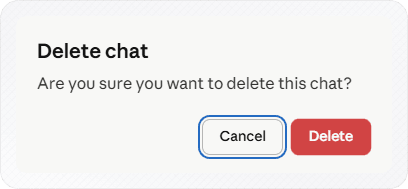
The chat leaves your history immediately and is deleted from Claude's back-end systems within 30 days. If you had shared it, the shared snapshot is removed and the link stops working. Your projects and account data aren't affected. There's no documented way to restore it, so back up the conversation first.
Those facts, from Anthropic's help article on deleting and renaming conversations, have practical consequences:
- The 30-day window isn't a recycle bin. It's how long removal from back-end systems can take, not a period in which you can restore the chat.
- Deleting your account is different. It's permanent and covers everything, so run the full backup first.
Two backup layers and what each is for
| Claude data export | Readable exports (PDF, Word, Markdown) | |
|---|---|---|
| Covers | Every conversation plus account data | The chats you choose |
| Format | JSON | Formatted documents or plain-text notes |
| Good for | A complete record; searching; scripts | Rereading, sending, printing, quoting |
| Effort | One request per backup | One click per chat |
| Restores chats into Claude | No | No — but you can upload them as files to give a new chat or Project context |
Neither layer replaces the other: the JSON means nothing is lost, the documents mean you can find what matters without digging through code-like text.
Which chats deserve a readable copy
Exporting everything as PDFs wastes time. Export a chat as a document when it:
- produced a deliverable — a report, a plan, a contract clause, a piece of code you shipped;
- records a decision someone may ask about later;
- holds research with sources you'd have to redo (see saving a Claude Research report);
- contains an artifact you still use (save the artifact itself too — see the checklist below);
- is a long thread with context you'd want to hand to another assistant or a new account (see moving between ChatGPT and Claude).
Pick the format by use: PDF for a fixed record, Word when you'll keep editing, Markdown when the copy lives in a notes app or repository (saving chats as .md files). When only one answer in a long chat matters, export that response alone.
Working inside a project? Its chats, knowledge files and instructions each need saving separately — the project export guide covers all three.
Testing the backup before you need it
A backup you've never opened isn't a backup yet. Once a quarter, or before any big clean-out:
- Open the JSON export in a text editor and search for a phrase from a conversation you remember. If it's there, the export is complete and readable.
- Open two or three of the readable exports — a long one, one with a table, one with code — and check that nothing was cut off at the end and that tables and code blocks came through intact.
- Restore one on purpose. Upload an exported Markdown or PDF file to a new Claude chat and ask a question about it. If Claude can work from the file, you've proved the backup is usable, not just stored.
- Check where the files live. Confirm the folder is still syncing to your cloud drive or included in your computer's backup; a folder that stopped syncing months ago is the usual way archives quietly disappear.
Five minutes of this beats discovering a broken export the day after you deleted the original.
A naming and folder system that stays findable
Chat titles are often vague ("Quick question"), so rename as you export.
File names: YYYY-MM-DD_topic_what-it-is.pdf — for example 2026-09-14_pricing-page_copy-final.pdf or 2026-08-02_q3-market-research_report.docx. The date first keeps them in order in any file browser.
Folders:
Claude backups/Full exports/— the JSON downloads, dated.Claude backups/By project/Project-name/— readable exports, mirroring your Claude Projects if you use them.Claude backups/Reference/— one-off answers you keep returning to.
Keep the whole folder on a synced cloud drive or a disk you back up, so one laptop failure doesn't take it with it. Confidential exports belong wherever your organization's rules say such files go.
A backup routine you'll keep up
- As you go: export any chat that produced something you'll use, the day you finish with it.
- Monthly or quarterly: request a fresh data export and file it with the date.
- Before a clean-out: run the checklist below, then delete.
On Team and Enterprise plans members can't request the data export themselves, so per-chat exports are their backup layer, if the organization allows browser extensions.
Before-you-delete checklist
- The latest data export has downloaded and the archive opens.
- Every chat you need again has a PDF, Word or Markdown copy, named and filed.
- You've opened a few of those files and checked long answers, tables and code came through complete.
- Artifacts you still use are exported separately — a whole-chat export isn't the artifact file. Docs, Slides and Design artifacts have Claude's own Export button; any artifact can be maximized and exported with the extension.
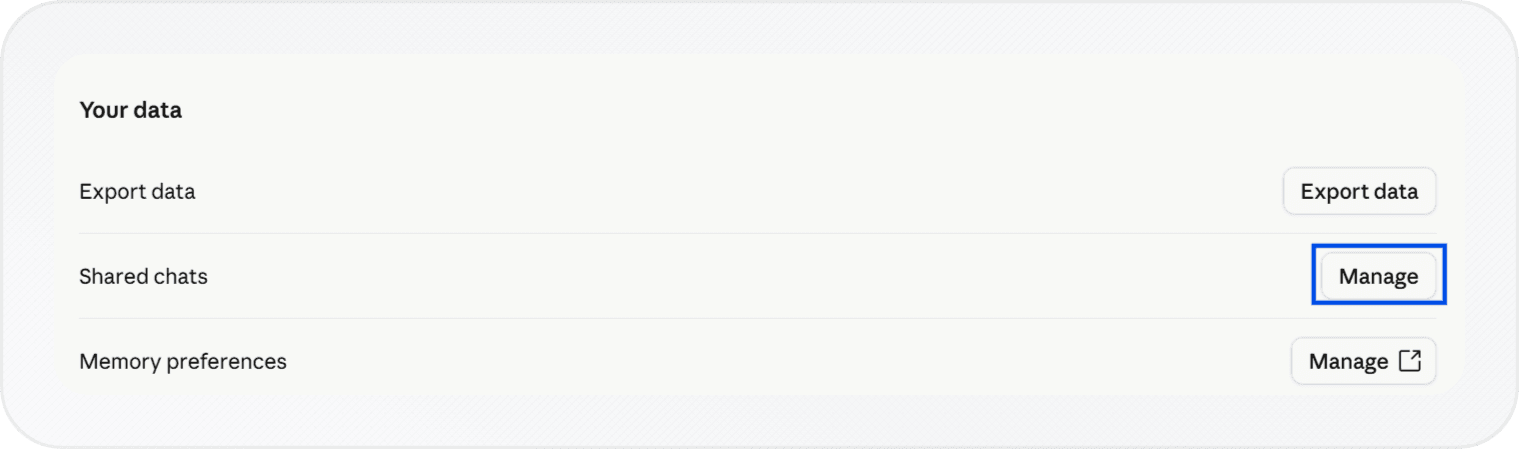
- Anyone relying on a shared link has a PDF instead, because deleting the chat removes the snapshot. Links you manage are listed under Settings → Privacy → Shared chats.
- The chat isn't the only copy of files you uploaded into it — keep the originals.
How to delete a Claude chat after backing it up
Once the checklist is done:
- Web, one chat: find the chat in the sidebar or on the Chats and tasks page, open its ⋮ menu and choose Delete, then confirm.
- Web, many chats: on the Chats and tasks page, open the ⋮ menu, choose Select, tick chats or use Select all, then click Delete.
- iPhone or iPad: touch and hold the chat, then tap Delete.
- Android: open the chat, tap the ⋮ menu at the top right and choose Delete; for several at once, tap the checklist icon on your chat list and select them.
Bulk deletion is where people lose things they meant to keep, so do the backup before you press Select all. For anyone who still needs to read a conversation, a PDF from the share-link converter or the extension outlasts a share link that disappears with the chat.