 Claude to PDF
Export part of a Claude chat
Save a Single Claude Response as PDF
To save one Claude response as a PDF, click the PDF button at the bottom of that answer — the Claude to PDF extension exports it on its own, without the rest of the conversation. For several answers, switch on selection mode and tick the ones you want.

- Private chats — no share link needed
- PDF, Word (.docx), Google Docs and Markdown
- Full chat, single response, selected messages or artifact
- Chrome, Edge, Brave and Arc
By the Claude to PDF team · Updated · How we research
How to save a Claude response as PDF
- Install the extension, then refresh claude.ai so the buttons load into the page.
- Scroll to the answer. Every Claude response now has export buttons along its bottom edge.
- Click PDF. Word sits next to it if you'd rather have an editable file.
- Open it from Downloads. The file holds just Claude's answer — not your prompt, and nothing else from the conversation before or after it.
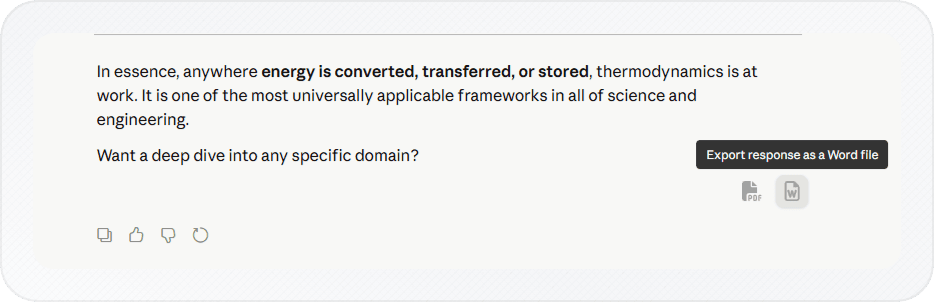
The result keeps the answer's own structure: headings, numbered steps, code blocks, tables and math all come through, which is the part that goes wrong when you copy a long answer by hand.
What the single-response PDF contains
The file is named after the conversation's title in Claude and holds exactly one message: Claude's answer, laid out as a document. What carries over depends on what the answer contained:
| In Claude's answer | In the PDF |
|---|---|
| Headings, paragraphs, bold and italic | Kept, in the same hierarchy |
| Numbered and bulleted lists, including nested ones | Kept |
| Tables | Real tables with borders and a header row |
| Code blocks | Monospace, set apart from the text |
| Math and equations | Rendered as equations (editable ones if you pick Word instead) |
| Charts, diagrams and visual widgets | Saved as images, in Claude's own colors |
| Your prompt | Left out by default — tick it in selection mode if you need it |
| Earlier or later messages | Not included |
Because the prompt is excluded, the PDF reads as a standalone document — useful when the answer is the deliverable and the question would only confuse the reader. When the answer only makes sense alongside the question, use selection mode (next section) and tick both.
Exporting a few messages from a long chat
Sometimes the useful part of a conversation is spread across several turns — the question that framed the problem, two answers that went nowhere, and the one that finally worked. Selection mode lets you keep only what matters.
-
Turn selection mode on. It's off by default: open the extension settings (gear icon), tick Select Messages Checkbox under Choose Export Buttons, and refresh claude.ai.
-
Close any open artifact — selection mode isn't available while one is open — and turn on the Select Messages checkbox in the toolbar at the top right. Checkboxes appear next to each message.
-
Tick the messages you want. You can pick your own prompts as well as Claude's replies, and the extension shows how many you've selected.

-
Click PDF (or Word). The file contains only the ticked messages, in the order they appeared in the chat.
Single response, selected messages or the whole chat?
| Your situation | Best option |
|---|---|
| One answer is the deliverable — a summary, a draft email, a code fix | Single response button |
| You need the question for context, not just the answer | Selection mode: tick the prompt and the reply |
| A long troubleshooting thread where only the ending matters | Selection mode: tick the final few messages |
| Several good answers scattered through one chat | Selection mode, or ask Claude to combine them first (below) |
| You need a full record of how you got there | Whole-conversation export from the top-right buttons |
| The content lives in a side panel, not in the chat | Export the artifact instead |
A tip for messy conversations
If the answer you want was built up over many turns, ask Claude to write the final version as one complete reply — "combine everything we agreed into one clean document" works well. Then export that single response. You get a tidy, self-contained PDF instead of fragments, and none of the earlier drafts. The same single-response export is the cleanest way to save a Claude research report, since the report arrives as one response.
If the answer is headed for a printer rather than a folder, these print settings help long code and wide tables fit the page.
Leaving your prompts out
Single-response exports already leave your prompt out. To do the same for whole-conversation exports, open the extension settings (gear icon) and, under Include Only Claude Responses in, turn on Entire conversation downloads, so the PDF reads as a standalone document rather than a transcript. Every setting, format and supported browser is covered on the Claude to PDF extension page.
Without the extension
- Claude's Copy button. Under each response, Copy puts that answer on your clipboard as Markdown. Paste it into Google Docs or Word, then download as PDF. It's free and needs nothing installed, but tables, code and math often need fixing afterwards. If a Markdown file is actually what you want, see Claude to Markdown.
- The web converter. Our share-link Claude to PDF converter can drop your prompts, but it can't pick out one answer — it exports all of Claude's replies from a public link.
- Printing the page. Ctrl+P on claude.ai prints the app page itself, not one reply. Export the response first, then print the PDF.
Frequently asked questions
Can I include my question along with Claude's answer?
Can I save one Claude response as Word or Markdown instead?
Can I save a single Claude response on my phone?
Related
- Save a Claude Research reportSave the report as one response, sources included.
- Claude to PDF extensionPrivate chats, artifacts and charts, no share link.
- Claude artifact to PDFClaude's Export button first; the extension for everything else.
- Claude to MarkdownFor Obsidian, Notion, GitHub or another AI.
- Print a Claude chatPaper size, margins and scale that keep code readable.