 Claude to PDF
How to Save a Claude Research Report as a PDF, Sources Included
A Claude Research report arrives as one long Claude response in your chat, with its sources. To save the Claude research report as a PDF, export that single response — the Claude to PDF extension adds a PDF and a Word button under every answer.
By the Claude to PDF team · Updated · How we research
How to save a Claude research report as PDF
The report is Claude's reply in the chat, so the job is to save that one reply as a document:
- Let the run finish. Research works for a few minutes (occasionally up to about 15) and then posts the full report as its response. Don't export while it's still working.
- Install the Claude to PDF extension in Chrome, Edge, Brave or Arc on a desktop, then refresh claude.ai.
- Scroll to the end of the report. The extension's export buttons sit at the bottom of every Claude response.
- Click PDF for a fixed copy, or Word for an editable .docx.
- Open the file and check that the sources came through before you send it to anyone.
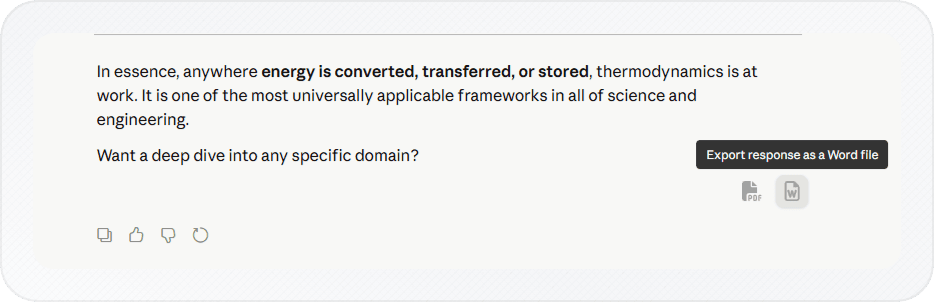
You get the report on its own, without your prompt or later follow-ups. Headings, lists, tables and any math keep their structure.
Where does a Claude Research report appear?
The report appears in the conversation as Claude's response to your prompt, usually after a few minutes of searching. It reads like a document, with headings and sections, and comes with the sources Claude used. Because it's a response like any other, anything that can export a single Claude response can export it — and because it stays in the chat, it's easy to lose among later follow-ups, so export it once you're happy with it.
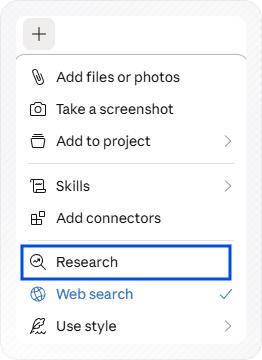
To turn Research on, click + at the bottom left of the message box and choose Research. It uses your usage limits faster than a normal chat. Anthropic's article on using Research on Claude covers availability.
PDF or Word for a research report?
| What you'll do with the report | Export as | Why |
|---|---|---|
| Send it to a manager, client or teacher as is | Fixed layout, prints cleanly, text stays searchable | |
| Edit it, add your own conclusions, trim sections | Word | Real headings and tables you can change |
| Share it with a team that works in Drive | Google Docs | Opens as a new doc in your Drive (turn the button on in the extension settings) |
| Keep it in Obsidian, Notion or a Git repo | Markdown | Plain text with headings and links (see Claude to Markdown) |
A common pattern with Research: export Word first, edit it into your own document, and save the finished version as PDF from Word. That keeps Claude's draft separate from what you actually sign off on.
Keeping the citations usable
A research report is only as useful as its sources, and those are the part most likely to be lost when you move text around by hand.
- Export the whole response, not a selection of it. Copying a highlighted chunk can leave sources behind; the single-response button takes the complete answer.
- Check how sources look in the file. Make sure you can still tell which source supports which claim once it's outside claude.ai.
- Ask for a reference list when you need one. For a formal document, send a follow-up such as "List every source you used as a numbered reference list with the full URL and page title," and export that response too.
- Keep your prompt when context matters. Turn on selection mode in the extension settings, tick your prompt, the report and any reference list, and export them as one file — the guide to exporting part of a Claude chat shows how.
Verify the report before you rely on it
Research can still misread a source, pick up an outdated figure, or overstate a conclusion. Treat the export as a draft until you've checked the parts that matter:
- Open the sources behind the three or four claims your decision actually depends on.
- Check dates on anything time-sensitive — prices, laws, product features, statistics.
- Look for claims with no source attached and either source them or cut them.
- Ask Claude a follow-up in the same chat, like "Which of these findings rest on a single source?", to find weak spots fast.
- Export again after corrections, so the file you keep matches the version you checked.
If you turn the report into an artifact
If you ask Claude to turn the findings into an artifact, the response buttons save the chat reply, not the artifact. New Docs artifacts have Claude's own Export button with PDF and Word, the simplest route. For any artifact, you can also maximize it and use the extension's top-right buttons, which then export only its content. Saving a Claude artifact as a PDF walks through both.
Other ways to save a Research report
Each of these works without the extension, with trade-offs:
- Claude's copy button. Copy the report, paste it into Google Docs or Word and download as PDF. Fine for short reports; long ones with tables usually need tidying.
- Public share link plus converter. On Pro or Max you can share the chat as a public link and paste it into the Claude link to PDF converter, ticking "Export Claude's responses only" to drop your prompts. You get every Claude reply in the chat, not just the report. Team and Enterprise chats can't use it, because public links aren't available there.
- Browser print. Ctrl+P or Cmd+P on claude.ai prints the app page, interface included, and long reports can come out cut off.
- Whole-chat export. If the chat is short and the back-and-forth is worth keeping, the buttons at the top right of the conversation export everything.
Troubleshooting
- No export buttons under the report. Refresh the claude.ai tab after installing, and check at chrome://extensions that the extension is enabled.
- The file stops partway. Make sure the Research run had finished, then export again.
- The report in the file isn't the one you wanted. If you asked follow-ups, each is a separate response. Use the buttons under the specific response that holds the report.
- No Google Docs or Markdown button. Only PDF and Word show by default; switch the others on under "Choose Export Buttons" in the extension settings.
Frequently asked questions
Can I export Claude deep research to Word?
Does the exported report keep the sources?
Who can use Claude Research?
Can I export the report from my phone?
Related
- Claude response to PDFOne answer, or just the messages you tick.
- Claude to PDF extensionPrivate chats, artifacts and charts, no share link.
- Claude chat to WordNative Word equations and real Word tables.
- Claude link to PDFWorks with links other people send you, too.
- Claude artifact to PDFClaude's Export button first; the extension for everything else.