 Claude to PDF
How to Export a Claude Chat to ChatGPT — and Move from ChatGPT to Claude
There's no button that moves a conversation between Claude and ChatGPT. Memory can move into Claude through Claude's official import flow, but chats can't be imported either way — to export a Claude chat to ChatGPT, save it as a Markdown or PDF file and give that file to the other assistant.
By the Claude to PDF team · Updated · How we research
How to export a Claude chat to ChatGPT
Since chats can't be imported, you move the content instead of the conversation:
- Open the Claude chat you want to carry over.
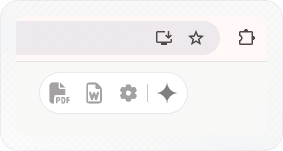
- Export it as a file. With the Claude to PDF extension, click Markdown at the top right of the conversation for the whole chat (switch the Markdown button on in the extension settings first — only PDF and Word show by default), or use the buttons under one response to take just that answer.
- Start a new chat in ChatGPT and attach the file. If you can't attach files, paste the text instead.
- Give it a brief. Say what the file is and what should happen next: "This is a conversation I had with another assistant about our onboarding emails. Read it, summarize the decisions, then help me write email three."
The new assistant then works from the full text of the old chat. It won't have the original's tool results, uploaded files or memory — only what's in the file — so attach any source documents again if they matter.
What can and can't move between Claude and ChatGPT?
Memory can move into Claude through an official import, and Claude's memory can be exported. Conversations can't: Claude doesn't import chats from other assistants, and its own data export can't be loaded into another personal Claude account. Anything else moves as a file you export and upload yourself.
| What you want to move | Officially supported? | How to do it |
|---|---|---|
| ChatGPT memory into Claude | Yes, experimental | Settings → Memory → Start import (below) |
| Claude memory out, for backup or another tool | Yes | Export Claude's memory (see Anthropic's help article) |
| ChatGPT conversations into Claude | No | Save the chat as a file, attach it to a Claude chat or Project |
| Claude conversations into ChatGPT | No | Export as Markdown or PDF, attach it to a new ChatGPT chat |
| Claude chats to another Claude personal account | No | Export as files, upload them in the new account |
| Claude's full data export | Backup only | JSON archive; can't be imported into another personal Claude account |
Memory is a summary of you — preferences, projects, how you like answers — while a chat is a specific piece of work. Memory carries over as context; the work travels as a document.
How to import ChatGPT memory into Claude
Claude's import flow gives you a prompt to run in the other assistant, then takes its answer back in. It works on Free, Pro, Max and Team plans, on claude.ai and in Claude Desktop.
-
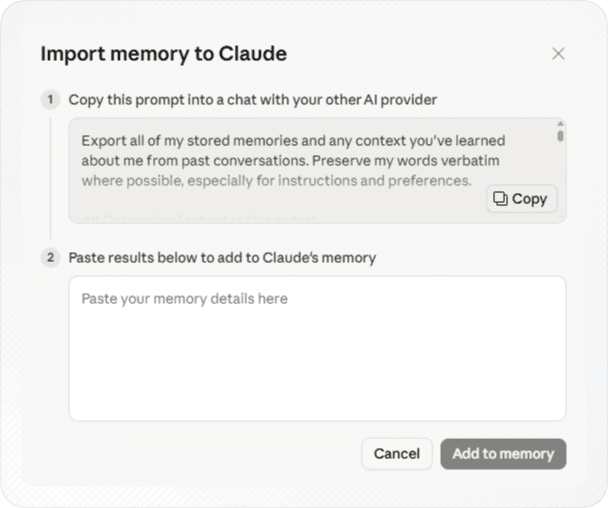
In Claude, open Settings → Memory and click Start import.
-
The Import memory to Claude window opens with a ready-made prompt. Click Copy.
-
Paste the prompt into a new chat in ChatGPT and send it. It asks ChatGPT to export the memories and context it has stored about you.
-
Read the answer before copying it. Delete any line you don't want Claude to know.
-
Paste the answer into the second box in Claude's import window and click Add to memory.
-
Start a new chat in Claude and ask what it now remembers about you, to see what came through.
The import is experimental, so expect some entries not to appear; tell Claude anything important that's missing. The same flow works for other assistants that can answer the import prompt. Anthropic's article on importing and exporting your memory is the reference if the screens change.
Moving from ChatGPT to Claude: bringing conversations
Memory gives Claude your background, but not the specific threads you were working on. For those:
- Pick the conversations that are still live — an ongoing project, a draft, research you'll build on.
- Get each one out of ChatGPT as text, by copying it or with whatever export options ChatGPT offers. Save it as a text, Markdown or PDF file with a clear name.
- Choose where it goes in Claude. For a one-off, attach the file to a new chat. For ongoing work, create a Project and add the files to its knowledge base, so every chat in that project can draw on them.
- Open with a brief telling Claude what the files are and what you want next.
Projects are available on every plan, though Free accounts are limited to five, so keep them for the work you return to most.
Switching Claude accounts
Claude doesn't move history between personal accounts, and the official data export can't be imported into another one. What does work:
- Keep a complete backup of the old account with Settings → Privacy → Export data (see exporting your Claude chat history). It's JSON, but it's the full record.
- Export the chats you'll keep using as Markdown or PDF while you still have access to the old account.
- Recreate the context in the new account. Upload those files into a Project, and rebuild memory — paste the old account's exported memory into a chat as context, or tell Claude the essentials in the first few chats.
- Delete the old account only once you've checked the files open. Deleting an account is permanent. Our guide to backing up Claude chats before deleting them has a checklist.
Making exported chats useful to the other assistant
A raw transcript works, but a cleaner file gets better results:
- Prefer Markdown. Headings, lists and code fences survive as plain text any assistant reads without trouble. Exporting a Claude chat as a .md file covers the options, including copying one answer with Claude's copy button. Keep the exported files afterwards — they double as your backup if either service changes what it keeps.
- Trim before you move. If only the final plan matters, export that response alone, or tick the relevant messages in selection mode — see exporting part of a Claude chat.
- Ask for a handover summary first. Before exporting, ask Claude: "Write a handover note: the goal, decisions made, open questions and next steps." Export that response alongside the chat.
- Leave out secrets. Exported files are ordinary documents. Remove API keys, passwords and private client details before uploading them anywhere.
- Don't rely on share links. A Claude share link is a view-only page for people. The other assistant may not be able to open it, and on Team and Enterprise plans links stay inside your organization anyway. A file is more dependable.