 Claude to PDF
How to Export Your Claude Chat History (and Make It Readable)
To export your Claude chat history, go to Settings → Privacy → Export data in the web app or Claude Desktop; Claude emails you a download link that expires after 24 hours. The file is JSON, so for chats you want to read or send, export those as PDF or Word separately.
By the Claude to PDF team · Updated · How we research
How to export Claude chat history, step by step
This one request downloads all your Claude chats at once. You'll need the Claude web app or Claude Desktop — the option isn't in the iOS or Android apps.
-
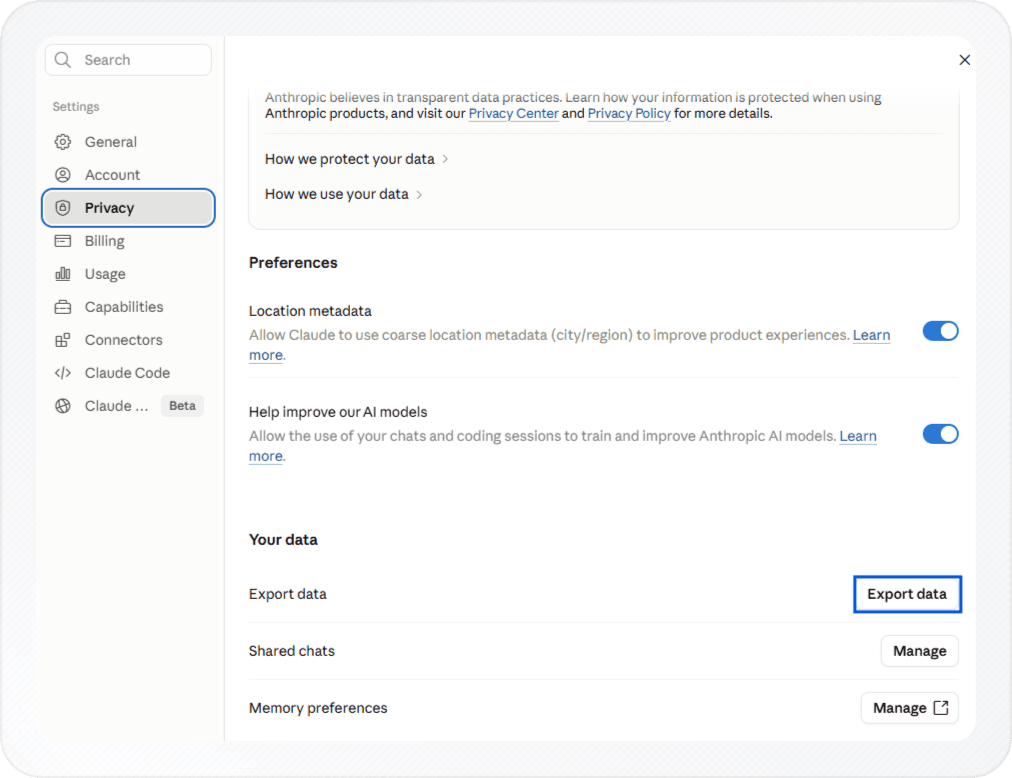
Open Settings. Click your initials in the lower-left corner of Claude and choose Settings.
-
Go to Privacy. Select Privacy, then click Export data.
-
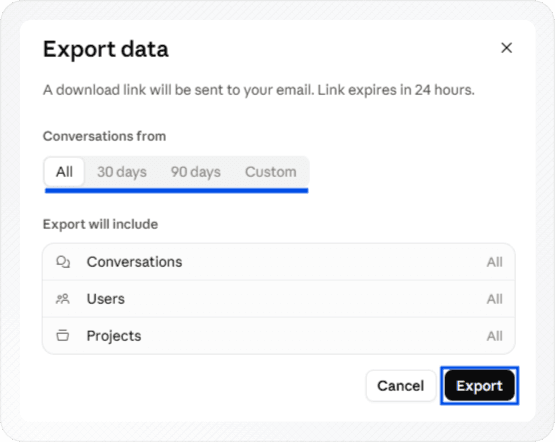
Confirm the export. A dialog opens asking you to confirm the request. Confirm it to start the export.
-
Look for the confirmation. Claude shows a short notice that the export has started.

-
Open the email. When the file is ready, Claude sends a download link to your account's email address.
-
Download within 24 hours. You must be signed in to the same Claude account for the link to work, and it expires 24 hours after delivery.
If the email doesn't arrive, check your spam or promotions folder before requesting another export. Claude's help article on exporting your Claude data is the official reference if the screens change.
Who can export, and from where
The rules depend on your plan and device:
| Account or device | Can you export? |
|---|---|
| Free, Pro or Max on claude.ai or Claude Desktop | Yes — from Settings → Privacy |
| Claude iOS or Android app | No — use a browser or Claude Desktop |
| Team or Enterprise member | No — only the organization's Primary Owner can export |
| Team or Enterprise Primary Owner | Yes, for the organization |
If you're on a work plan and just want a copy of your own conversations, the Primary Owner route is the only official one. The extension described below saves individual chats you can open in claude.ai, provided your organization allows browser extensions.
What's in the export — and what it isn't
The download holds your conversation data plus account user data, in JSON. JSON is structured text built for software: each message sits inside nested fields alongside its metadata. You can open it in a text or code editor, but a long history reads like a wall of brackets and quotes, and formatting such as tables or code blocks isn't rendered. If you mainly need one project's chats, files and instructions, saving a project's chats, files and instructions covers how.
Three limits catch people out:
- It's all or nothing, not per-chat documents. There's no PDF or Word file per conversation inside.
- It can't be imported. You can't load an export into another personal Claude account, and migrating history between personal accounts isn't supported. Treat it as a backup, not a transfer tool — for switching assistants, see moving between ChatGPT and Claude.
- The link is short-lived. After 24 hours you need to request a fresh export.
What the JSON export is good for
Even though it isn't readable as a document, the raw export is the most complete copy of your history you can get from Claude. It earns its place when you want to:
- Keep an offline backup of everything, stored with a date in the file or folder name so you can tell exports apart.
- Search across all your chats with a code editor's find-in-files, when you remember a phrase but not which conversation it was in.
- Process conversations with a script, for example counting how often you used Claude for a project or pulling every code snippet into one place.
- Keep a record before closing an account or clearing out old chats.
Getting readable copies instead: PDF, Word, Markdown
Most people searching for a history export actually want a handful of important conversations as files they can open, read and send. For that, export those chats directly rather than digging them out of JSON.
The Claude to PDF extension adds export buttons inside claude.ai and works on private chats, so nothing has to be shared:
- Install it from the Chrome Web Store in Chrome, Edge, Brave or Arc on a desktop, then refresh claude.ai.
- Open a conversation you want to keep.
- Click PDF or Word at the top right of the chat to save the whole conversation. To get Google Docs or Markdown buttons too, enable them under "Choose Export Buttons" in the extension's settings.
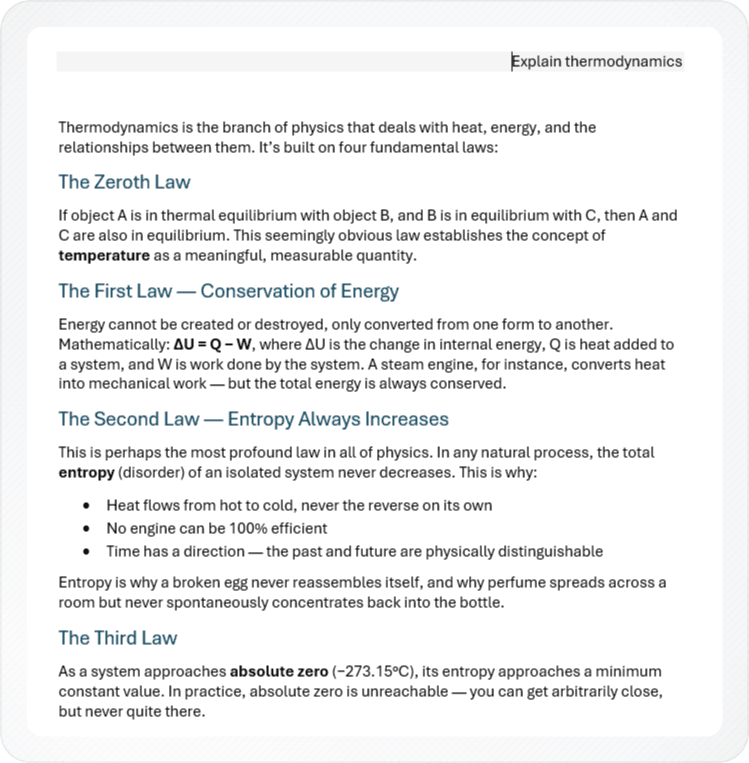
You can also export a single response, only the messages you select (after switching message selection on in the settings), or a maximized artifact — useful when a long chat only has one part worth keeping. Headings, lists, tables, code blocks and math come through as a formatted document. The free plan covers a limited number of exports a month; a paid plan removes the limit.
Pick the format by what happens next:
| You want to… | Export as |
|---|---|
| Read, file or send a fixed copy | PDF — with the extension, or the Claude to PDF converter for public share links |
| Keep editing the text | Word — see exporting a Claude chat to Word |
| Add it to Obsidian, Notion or a Git repo | Markdown — see Claude to Markdown |
| Back up every chat you've ever had | Claude's JSON data export (above) |
No install possible? If you can make a chat public, create a public share link and paste it into the converter to get a PDF in any desktop browser — turning a Claude link into a PDF walks through it.
Using the export as part of a backup
The JSON export gives you completeness; per-chat PDF or Word files give you something you'll actually open. If you plan to delete chats or want a regular backup routine, follow the backup checklist for Claude chats, which covers what deletion does, file naming and a pre-delete check.
Troubleshooting the export
- The link says it has expired. It's valid for 24 hours after delivery. Request a new export from Settings → Privacy.
- The link asks you to sign in. Sign in with the same Claude account that requested the export, then open the link again.
- You can't find Export data. You're probably in the iOS or Android app, or on a Team or Enterprise account where only the Primary Owner can export.
- No email arrived. Check spam and any other inbox filters, confirm the email address on your Claude account, then request the export again.
- The file won't open as a document. That's expected — it's JSON. Use a text or code editor, or export the chats you need as PDF or Word instead.
Frequently asked questions
Can I export Claude chats to another account?
Can I export a single Claude conversation instead of everything?
How can I save my conversation history in Claude?
Related
- Export a Claude projectChats, knowledge files and instructions, one by one.
- Back up Claude chatsWhat deletion really does, plus a pre-delete checklist.
- Claude to PDF extensionPrivate chats, artifacts and charts, no share link.
- Claude chat to WordNative Word equations and real Word tables.
- Claude to MarkdownFor Obsidian, Notion, GitHub or another AI.