 Claude to PDF
How to Export a Claude Project When There's No Export Button
Claude has no one-click way to export a project, so you save its three parts separately — export the chats as documents, keep your original knowledge files, and copy the instructions into a document. Claude's data export adds a complete JSON backup.
By the Claude to PDF team · Updated · How we research
How to export a Claude project, part by part
A project export is four small jobs:
- Export the chats. Open each project chat you want to keep and save it as PDF, Word or Markdown with the Claude to PDF extension.
- Gather the knowledge files. Collect the originals of everything you uploaded to the project from your computer, drive or repository.
- Copy the instructions. Open the project's instructions, select all the text and paste it into a document.
- Take a backup. Request Claude's data export from Settings → Privacy for a full JSON copy of your conversations.
Put the results in one folder named after the project — chats in one subfolder, files in another, instructions as a single document.
Is there an export button for Claude projects?
No. Claude doesn't offer a documented one-click export for projects, on any plan. The data export in Settings covers your account's conversations as JSON, not a tidy project bundle, and exports can't be imported to recreate a project. Saving a project means saving its chats, knowledge files and instructions one by one. In practice most projects hold a handful of chats that matter and files you already have elsewhere.
What's inside a Claude project
Projects are workspaces with their own chats, a knowledge base of uploaded files, and project instructions that apply to every chat inside. Each part lives in a different place and needs a different method:
| Part of the project | What it is | How to save it |
|---|---|---|
| Chats | Conversations started in or moved into the project | Export each with the extension; data export as backup |
| Knowledge base | Files and text you added to the project | Keep your original files; copy any pasted text into a document |
| Instructions | The standing directions Claude follows in every chat | Select, copy and paste into a document |
| Artifacts made in project chats | Documents, slides, designs or other content Claude built | Docs, Slides and Design artifacts: Claude's own Export; any artifact: the extension (maximize, then export) |
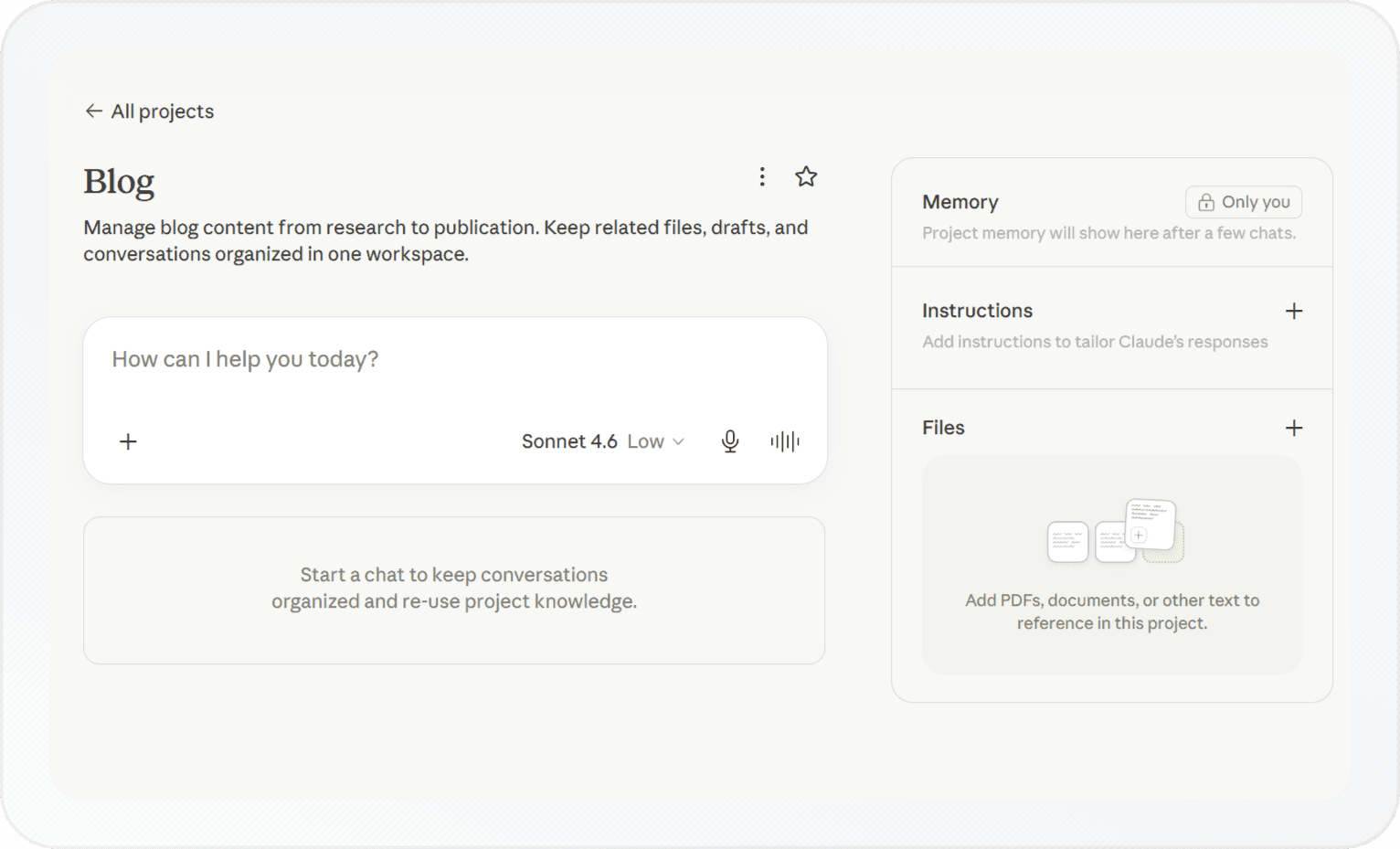
Every chat in the project works from the same knowledge base and instructions, so those are worth saving as much as the chats: they shaped every answer.
Saving the project's chats
The chats usually hold the valuable part: the analysis, drafts and decisions. The extension works on private chats, so nothing in the project has to be shared:
- Install the extension in Chrome, Edge, Brave or Arc on a computer and refresh claude.ai.
- Open the project and click into the first chat you want to keep.
- Click PDF or Word at the top right to save the whole conversation. Google Docs and Markdown buttons can be switched on in the extension settings under "Choose Export Buttons".
- Repeat for the other chats, naming each file after the project and the topic of the chat.
For long project chats, you rarely need everything. Use the buttons under a single response when only one answer matters (saving a single Claude response covers it), or turn on message selection in the settings and tick just the key turns. Pick Word if you'll keep editing — see exporting a Claude chat to Word — and Markdown if the copies will sit in a notes app or repository next to the project files. The free plan covers a limited number of exports a month; a paid plan removes the limit for larger projects.
Keeping the knowledge base
There's no documented way to download a project's knowledge base in bulk, so treat the project as a place where copies live, not as your storage.
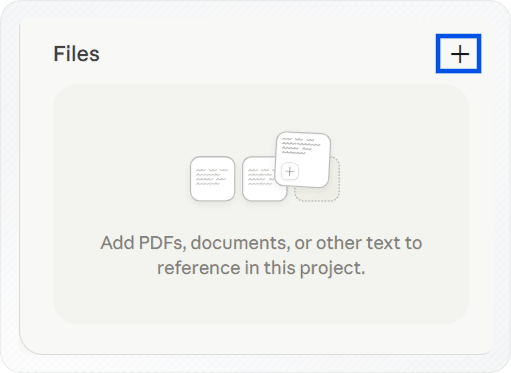
- Uploaded documents: keep the originals in a folder or drive you control. If you've lost one, look in the chat or email where it came from.
- Text you pasted in: copy it back out into a document while the project still exists.
- Files attached inside a single chat belong to that chat, not the knowledge base. Note which ones they were so you can find the originals.
Copying the project instructions
Instructions are easy to forget and slow to rewrite.
- Open the project and click Instructions in the panel on the right.
- Click into the text box and select all the text (Ctrl+A, or Cmd+A on a Mac).
- Copy it and paste it into a document in your project folder.
- Close the box without saving, so the instructions stay unchanged.
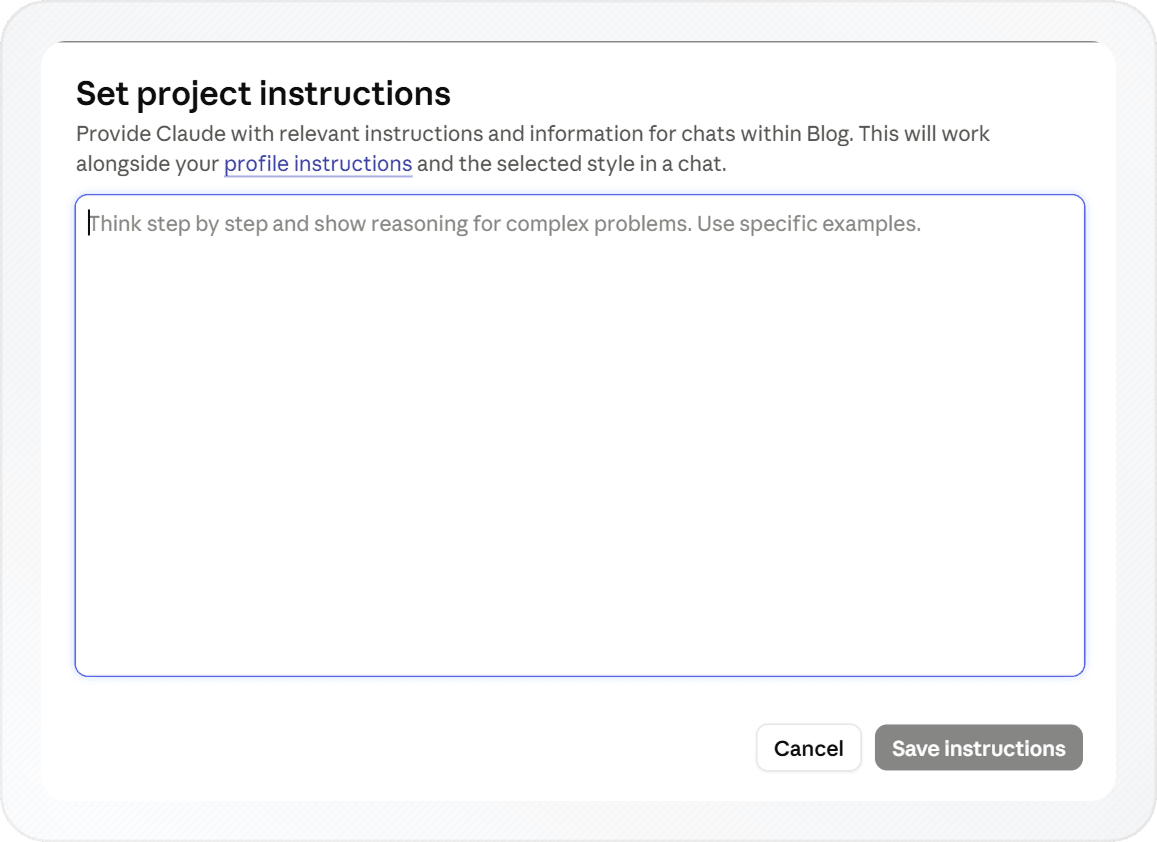
Note the date you copied them; it's the text you'll paste back in if you rebuild the project.
Backing up with Claude's data export
For completeness, add Claude's own export from Settings → Privacy → Export data. It's the most complete record you can get, but it's JSON for your whole account, not organized into project folders or readable documents. Plan rules, the emailed link and its time limit are covered in the Claude data export walkthrough.
Moving or handing over a project
Exporting usually serves one of three ends:
- Moving to another account. Create a new project there, paste in the saved instructions and upload the original files. The chats come across only as your exported documents; they can't be continued as Claude conversations.
- Handing work to a colleague. On Team and Enterprise, sharing the project with Can view or Can edit access is simpler than exporting, and it stays inside your organization. On other plans, send the exported folder.
- Archiving before you clean up. Deleted chats can't be restored, while the project itself stays until you delete it. Export first, then delete.
A note on the new version of projects
A new version of projects is in beta, starting in Claude Code for selected Pro and Max users. Existing projects in the Claude chat app keep working as before, and they're what this page covers.
For the artifacts inside your project chats — documents, slides and designs — Claude's own Export button is often the quickest way out; downloading Claude artifacts explains the formats each one offers.
Frequently asked questions
Can I import a Claude project into another account?
Does deleting a chat remove it from the project?
How many projects can I have on the Free plan?
Related
- Export Claude chat historyThe official JSON export: steps, limits, 24-hour link.
- Claude to PDF extensionPrivate chats, artifacts and charts, no share link.
- Claude response to PDFOne answer, or just the messages you tick.
- Claude chat to WordNative Word equations and real Word tables.
- Download Claude artifactsExport formats per template, sharing and legacy publish.